Building your custom Dictionary
Your Dictionary allows you to teach VoicePilot the words, names, and jargon that are specific to you, so dictation stops getting the same terms wrong over and over.
✅ Adding Words
Open the Dictionary section in the VoicePilot dashboard and add your first term:
- Click New word in the header, or Add word on the hero card.
- Type the word or term into the Word or term field.
- Click Save.
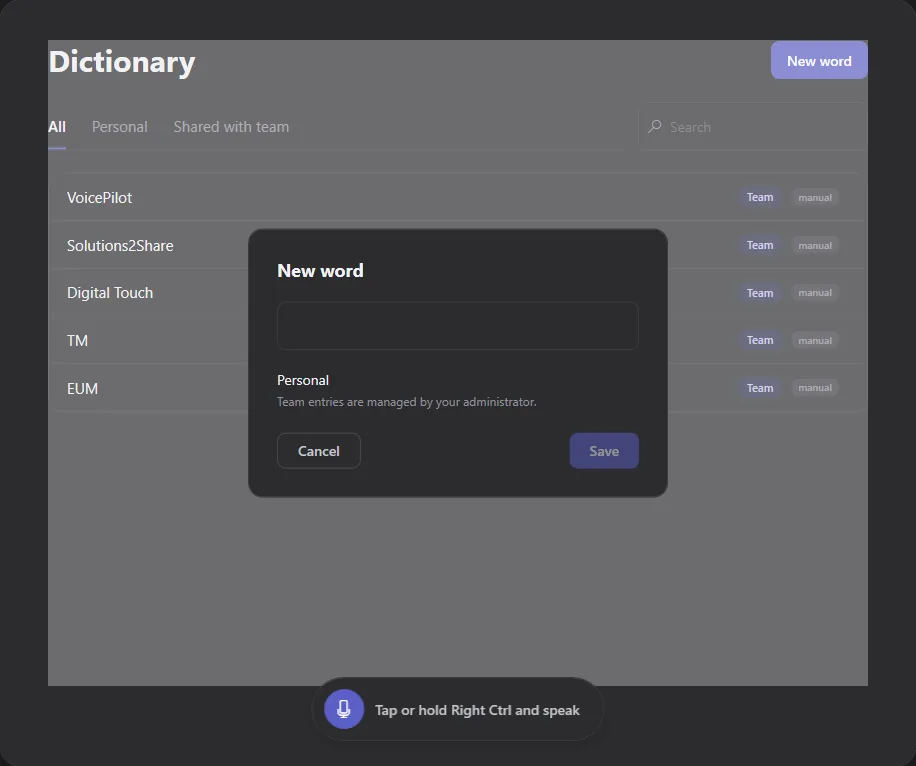
Until you've added anything, the list simply reads "No words yet. Add your first one."
Each entry carries a small badge marking it as manual or automatic. Everything you add yourself is manual; the automatic badge is reserved for terms VoicePilot picks up on its own, which isn't switched on yet.
👤 Personal and Team Entries
Entries live in one of two scopes, and the scope is fixed once an entry is created:
- Personal - only you see and use this entry.
- Team - shared with everyone in your organization.
If you're not an administrator, every word you add is Personal, and the dialog tells you that team entries are managed by your administrator. You'll still see Team entries in your list and dictation still applies them, but you can't edit or delete them.
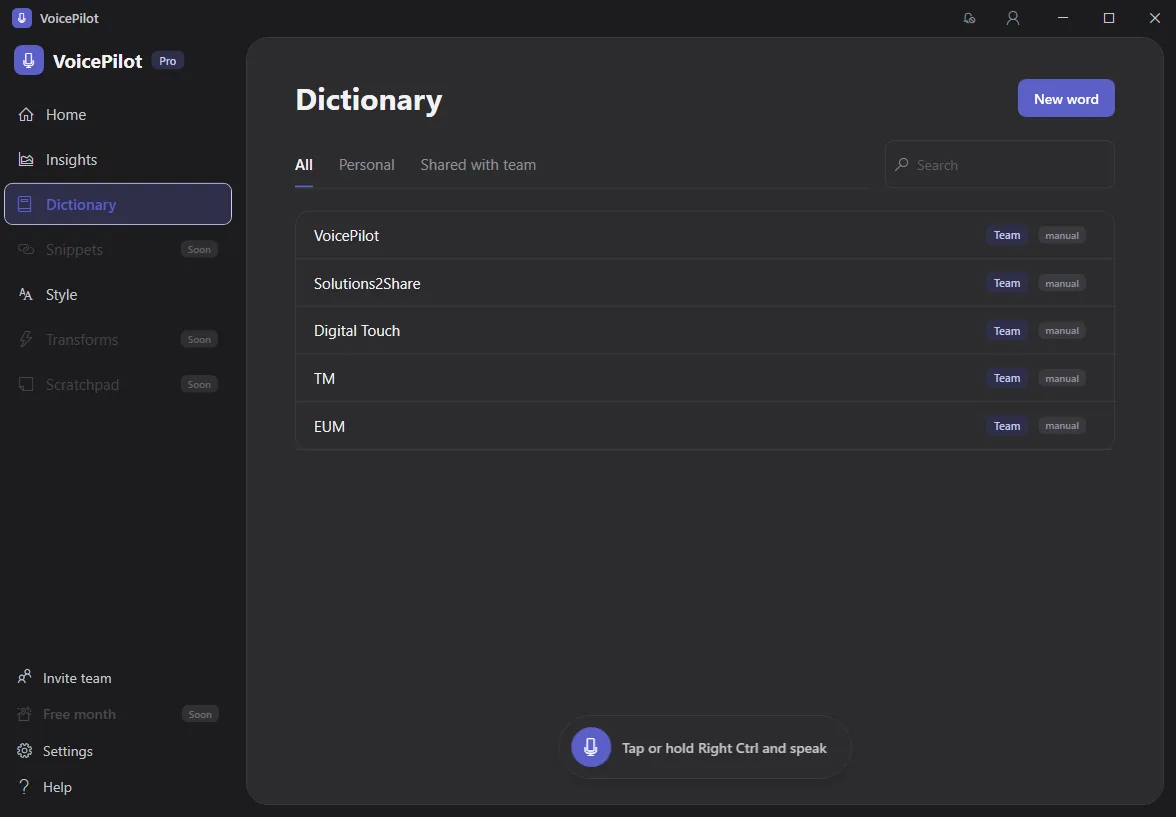
💡 If your company name or a client's name keeps coming out wrong for everyone, ask your administrator to add it once as a Team entry rather than everyone fixing it individually.
Administrators get a Personal / Team picker in the same dialog, and can also manage the shared list from the Admin Center.
🔎 Finding and Managing Entries
Switch between the All, Personal, and Shared with team tabs to narrow the list down, and use the Search field once your Dictionary grows past a handful of entries.
Click Edit on any entry to change its wording, or Delete to remove one you no longer need. Editing changes the word only; you can't move an entry between Personal and Team afterwards, so delete it and add it again in the scope you want.
Once a word is gone, VoicePilot stops applying it to new dictations. Anything you've already dictated stays exactly as it was.
⛑️ Need more help?
Get further assistance with VoicePilot through our support chat widget within the app, or reach out to us at support@solutions2share.com