Using Style Presets
Style Presets allow you to tell VoicePilot to rewrite your dictation differently depending on the app you're speaking into or a word you say out loud.
🎨 Creating a Preset
Open the Style section of the VoicePilot dashboard and create your first one:
- Click New preset. The editor opens as New style prompt.
- Fill in a Name, for example "Customer Email".
- Write your Instructions for the AI, describing how you want your text rewritten.
- Click Test to preview how VoicePilot would rewrite a sample sentence, then click Save prompt.
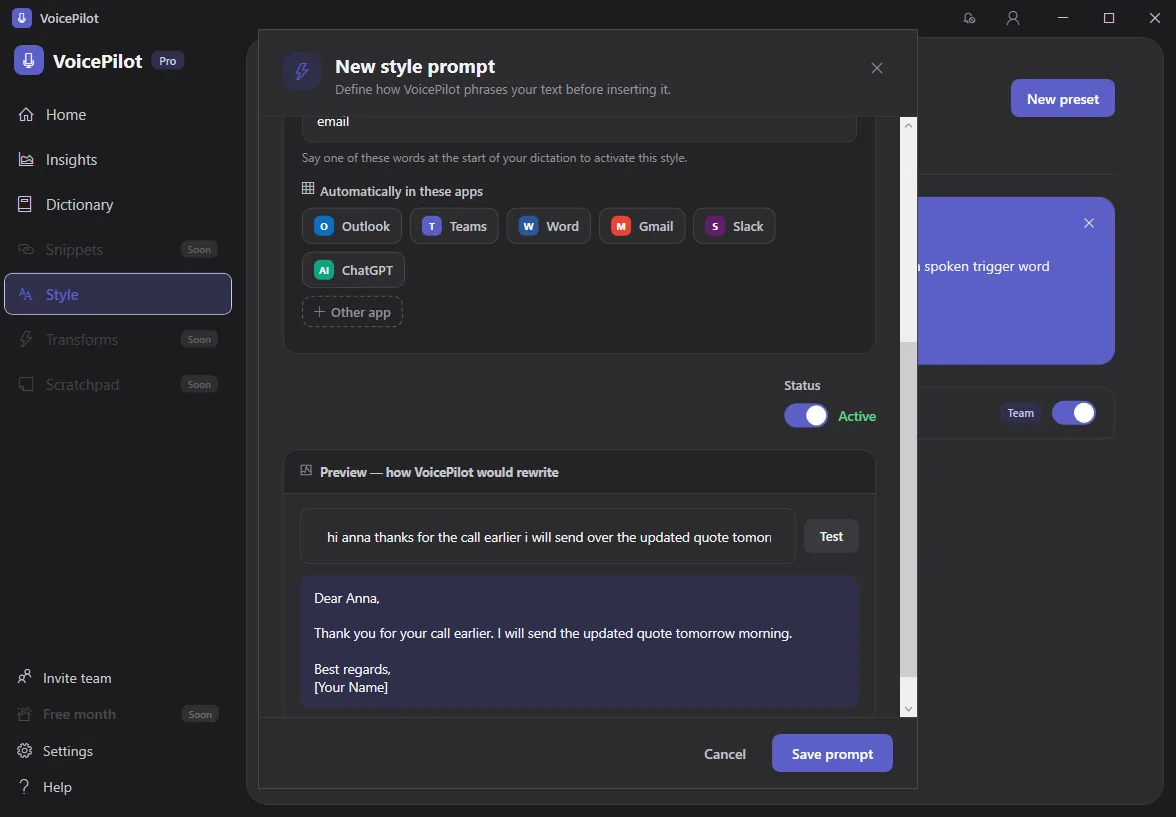
Each preset carries a Status of Active or Inactive, so you can park one without deleting it, and you'll be able to switch it back on later.
💡 Test needs the cleanup service, so if the preview won't load, sign in first or configure an API key.
🔗 Choosing When It Applies
A preset activates in one of two ways under When does this style apply?, and you can use both at once:
- Automatically in these apps - click one of the quick-pick chips for Outlook, Teams, Word, Gmail, Slack, or ChatGPT, or click Other app and enter a bundle ID such as com.microsoft.Outlook yourself. From then on it'll apply every time you dictate into that app.
- Trigger words - type a word and press Enter to add it. Say one of those words at the very start of a dictation and you'll get that preset for that dictation only.
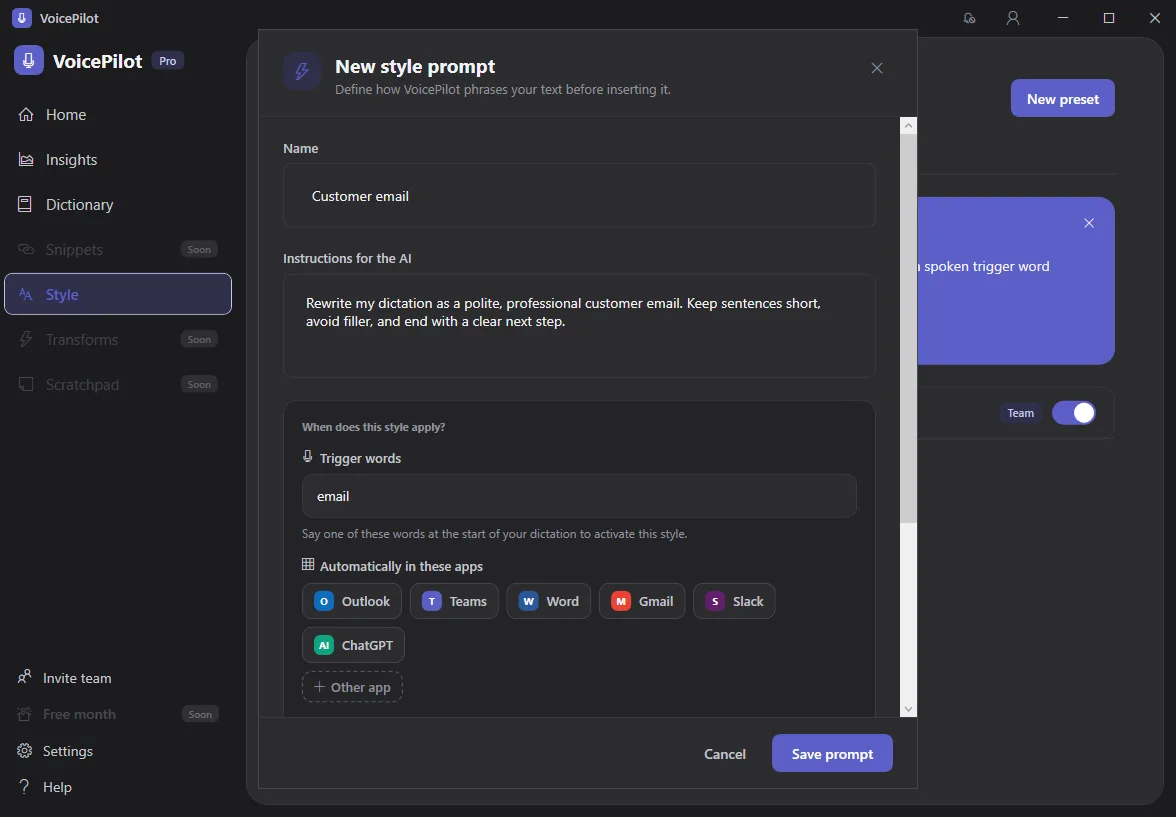
Once you've set either one up, VoicePilot applies the matching preset the next time you dictate, without you having to do anything differently.
If two presets collide, VoicePilot warns you in the editor and tells you which one will win. For a shared app, the most recently edited preset wins; for a shared trigger word, the first match wins at runtime.
For example, you could link a formal preset to Outlook and set up a separate "casual" trigger word for quick Slack messages, so both live side by side without interfering with each other.
👤 Personal and Team Presets
Your presets are listed under All, Personal, and Team tabs. Personal presets are visible only to you; Team presets are shared with your organization, so they're what your colleagues see too.
Keep in mind that the Visibility picker only appears if you're a tenant administrator; everyone else creates Personal presets, and the Team tab is where the company-wide styles an administrator has published show up.
If you're an administrator, you'll manage those company-wide styles from the Admin Center rather than from the desktop app.
⛑️ Need more help?
Get further assistance with VoicePilot through our support chat widget within the app, or reach out to us at support@solutions2share.com