Dictating with VoicePilot
Dictating with VoicePilot allows you to turn speech into clean, formatted text anywhere your cursor is, including documents, chat apps, and browser fields, without switching windows or touching the mouse.
Let's go through the whole flow, from holding the shortcut to seeing text land on the page.
🎙️ Recording and Pasting
- Hold your Hold to Talk shortcut, Right Option on macOS or Right Ctrl on Windows, and start speaking.
- Release it once you're done.
- VoicePilot transcribes what you said, cleans it up, and pastes it at your cursor.
If you'd rather not hold a key the whole time, use the Tap to Toggle shortcut instead: tap once to start recording and tap again to stop. It defaults to Right Option + Command on macOS and Right Ctrl + Alt on Windows.
You can also mix the two. Press the Tap to Toggle shortcut while you're still holding the Hold to Talk one, and VoicePilot latches into tap mode, so you can let go of the keyboard and carry on speaking.

Once the text lands, it behaves exactly like anything you'd typed yourself, so you can keep editing straight away. If you want the same transcript again somewhere else, use Paste Again from the menu bar or tray, or give it its own shortcut in setup.
📋 Clipboard Behavior
Two settings under Settings > Clipboard shape what happens the moment your transcript is ready:
- Preserve clipboard after pasting - VoicePilot briefly places the transcript on the clipboard, pastes it, then restores the previous contents, so dictating doesn't wipe out something you'd already copied.
- "Press Enter" to send after pasting - if your transcript ends with the words "press Enter", VoicePilot removes them and presses Return for you, which is handy in chat apps where you'd otherwise reach for the mouse.
💡 Both are ordinary settings you can leave alone. Untouched, VoicePilot simply pastes and gets out of the way.
✍️ Cleanup and Formatting
VoicePilot doesn't paste a raw transcript. It cleans your speech up first, and Automatic formatting under Settings > Formatting decides how much structure it's allowed to add:
- Off - no structuring at all.
- Lists only - spoken enumerations come out as lists.
- Lists + paragraphs - lists, plus paragraph breaks where you paused.
- Full structure - the most heavily structured result.
Keep in mind that formatting only applies while AI cleanup is on, since it works on the cleaned-up text rather than the transcript.
🌐 Output Language
By default, Output language is set to As spoken, so VoicePilot writes what you actually said. Choose a Language instead and it translates every dictation into that language before pasting.
For example, if you dictate in German but set Output language to English, everything from then on comes out in English automatically.
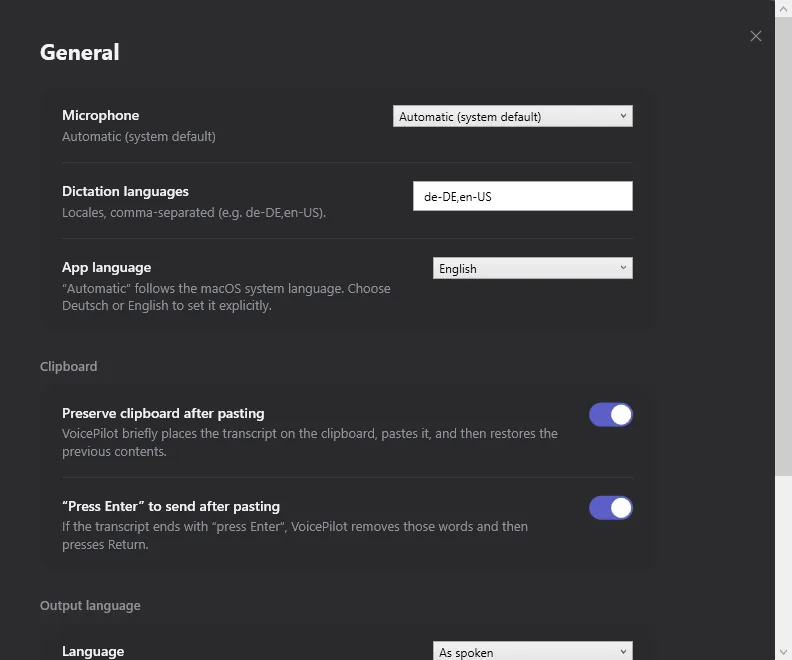
Your administrator can restrict which dictation languages are available to you; when they have, Settings lists the allowed ones directly.
📖 Getting Recognized Correctly
If VoicePilot consistently mishears a name, product, or term you use often, add it to your Dictionary rather than correcting it by hand every time.
We recommend pairing dictation with a custom Dictionary and Style Presets once you're comfortable with the basics, since both bring what VoicePilot produces closer to how you'd have written it yourself.
👣 Next Steps
Now that you're dictating comfortably, you should consider looking into:
⛑️ Need more help?
Get further assistance with VoicePilot through our support chat widget within the app, or reach out to us at support@solutions2share.com